Add your product dimensions
The first step in setting up cartonization is to add your product dimensions and packing preferences, such as whether an item ships alone, to Zonos Catalog.
Tip: Complete product dimensions unlock the 3D cartonization display, which helps you visualize packing efficiency and identify opportunities to optimize your box options.
To add products one at a time:
- Go to Dashboard -> Catalog and click on Add product in the top right-hand corner.
- Add your SKU and/or product ID (required) along with your product's Dimensional unit, Length, Width, Height, Weight unit, Max weight, and Package weight.
Note: If your item ships alone, mark the Ships alone checkbox.
- Click Save product.
To add products in bulk via CSV:
- Download the Catalog CSV template.
- Add your SKU and/or product ID along with your product's dimensional unit, length, width, height, weight unit, max weight, to the Zonos CSV template.
Note: If your item ships alone, add
ships_aloneas the value in the Packing preference column. - Save your file as a CSV.
- Go to Dashboard -> Catalog -> Import products and then either drag and drop your file or by click browse to find and select your file.
- Follow the prompts to review your uploaded products and correct fields if there are any errors. To ensure the correct formatting and successful import of your products, follow the required formatting shown in this table.
- Click Import.
CSV fields descriptions
| Column | Description |
|---|---|
| Box name | The name of your box for referencing. |
| Weight unit | The box's weight unit. Valid values are gram, kilogram, pound, and ounce. If a unit is not provided, the value will default to pound. |
| Max weight | The box's maximum weight capacity. |
| Package weight | The weight of the packaging materials. |
| Dimensional unit | The product's dimensional unit. Valid values are inch, foot, yard, millimeter, centimeter, and meter. If a unit is not provided, the value will default to inch. |
| Length | The length of the box. |
| Width | The width of the box. |
| Height | The height of the box. |
Items that ship in multiple boxes
When an item is assigned multiple boxes, Zonos uses the weights and dimensions of all the assigned boxes to accurately calculate a shipping quote.
To set up items that ship in multiple boxes:
- Input your item dimensions into Catalog (see steps above).
- Download and open the spreadsheet Multibox CSV template.
- In the Master Spreadsheet tab, include all product SKUs and/or product IDs for your items that ship in multiple boxes.
- Use the Child Packages tab to list each SKU with the corresponding box(es). Ensure each box is listed in a separate row. For example, if SKU1 ships in two boxes, list SKU1 in two separate rows, each with the respective box name and shipping box dimensions. Similarly, list SKU2 in three separate rows if it ships in three boxes, including the box name and shipping box dimensions for each.
- Send the completed sheet to your Project Manager if you're going through onboarding, or to support@zonos.com if you're already using Zonos.

Add box options
The last step in setting up cartonization is to create your packaging options. If specific packaging options are not defined, a default size of 8x4x2 is applied.
Tip: The more box options you configure, the more efficiently cartonization can pack items. The 3D visualization helps you see which box sizes are used most frequently and identify gaps in your packaging strategy.
To add a box:
- Add your shipping boxes by going to Dashboard -> Settings -> Cartonization.
- Click Add box in the top right corner.
- Add your box's Dimensional unit, Length, Width, Height, Weight unit, Max weight, and Package weight.
- Optional— Name your box. If you don't, we'll name it based on its characteristics.
- Optional—Mark your box as your default box by checking the Make default box size box.
Note: Default boxes are used as a fallback when no box size is applied to the order.
- Click Add box.
To add boxes in bulk via CSV:
- Go to Dashboard -> Settings -> Cartonization.
- Click Add box in the upper right-hand corner.
- Download the cartonization CSV template and enter your box names, maximum weight, package weight, and dimensions in the designated fields. Once completed, save the file in CSV format.
- Upload your new CSV file to cartonization by dragging and dropping or by clicking browse to locate and select the file.
- Click Continue and view your newly added boxes.
3D cartonization display
Beta
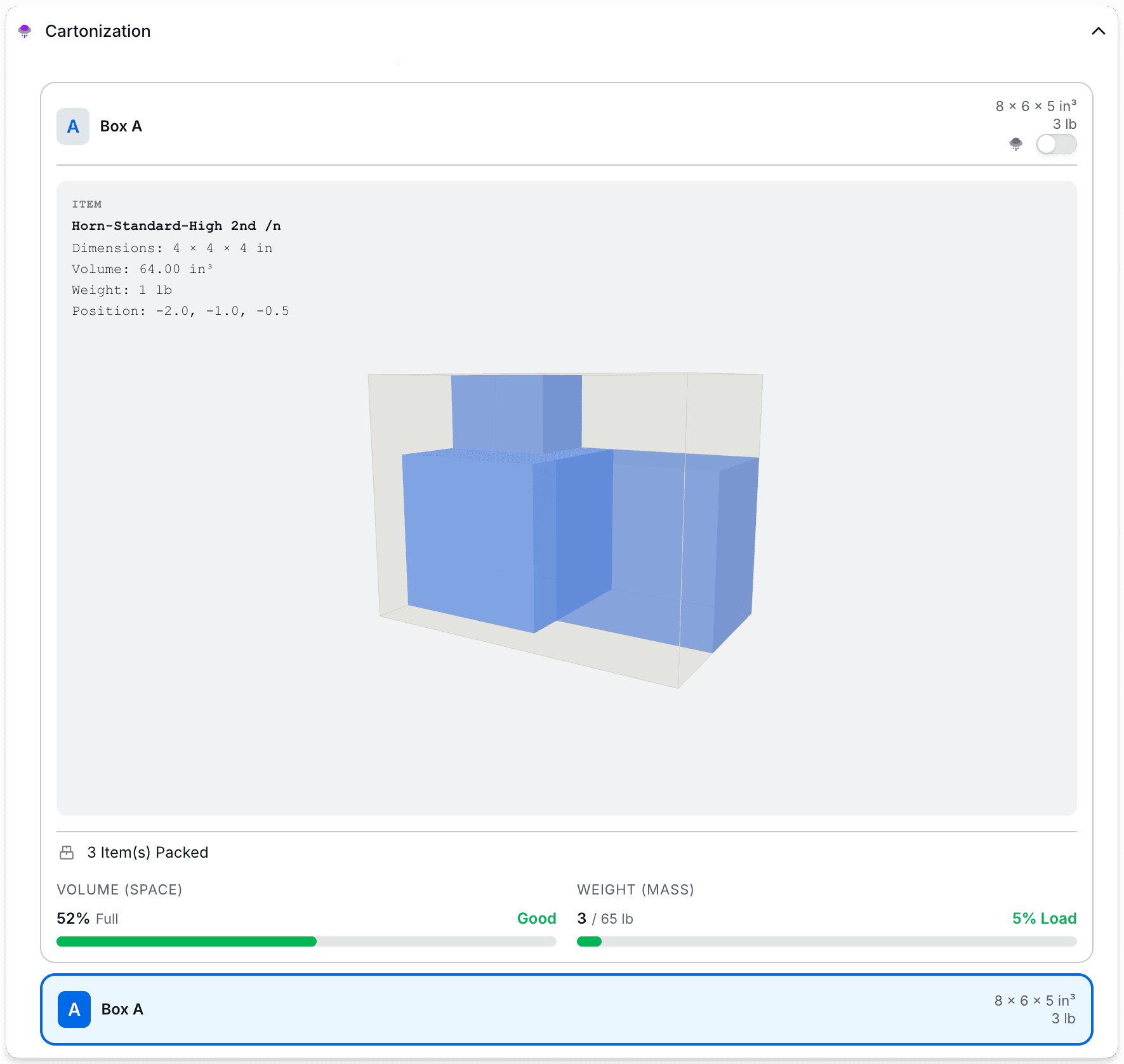
Visualize exactly how items pack into boxes with an interactive 3D display on your orders. This feature provides complete transparency into the cartonization process, helping you understand packing efficiency, identify optimization opportunities, and build confidence in your shipping quotes.
The 3D display appears on individual orders in Dashboard and allows you to rotate the view to see how items fit within each box. This visualization helps you:
- Verify that items are packed efficiently into your available box options
- Identify whether additional packaging sizes could reduce wasted space
- Understand how weight and volume are distributed across multiple boxes
- Troubleshoot unexpected shipping costs by seeing the actual packed dimensions
Prerequisites for 3D display
The 3D cartonization display only appears when both of these conditions are met:
- Packaging options are configured — You must have box sizes set up in Cartonization settings that work for the shipment.
- Item dimensions and weights are provided — Products must have complete dimensional information added to Catalog, synced from your ecommerce platform, or passed via API.
If either requirement is missing, cartonization won't function efficiently and the 3D display won't appear on orders.
What you'll see
The 3D display shows an interactive visualization of each box in your shipment. You can click and drag to rotate the view and see how items are positioned within the box. Each visualization includes:
- Item details showing dimensions, volume, weight, and position coordinates
- Volume utilization percentage showing how efficiently the box space is used
- Weight load percentage showing how much of the box's weight capacity is used
- Visual indicators when packing is optimal, efficient, or could be improved
Data quality warnings
If products are missing dimensions or weights, the 3D display will show a data quality warning that identifies dimension-related and weight-related issues. These warnings help you pinpoint which products need updated information in order to generate accurate cartonization visualizations and shipping quotes.
How to access the beta
This feature is currently in beta. To enable 3D cartonization visualization for your account, reach out to product@zonos.com.
Set up cartonization
Set up product dimensions and box sizes to optimize shipping quotes and unlock 3D packing visualization.
Setting up cartonization is essential for an optimized shipping experience, helping to ensure accurate shipping quotes and efficient packaging. With proper setup, you'll also gain access to a 3D visualization that shows exactly how items pack into boxes, giving you transparency into the cartonization process and insights to optimize your packaging strategy.
To begin, provide the dimensions of your products and shipping boxes, including box weights and maximum weight capacities. This information enables cartonization to calculate and pack items into boxes accurately and efficiently.